
- ✓SSIM perceptual quality at 80% lossy: 0.95 or above — scientific threshold for 'visually identical'
- ✓Processing runs in your browser — files are not uploaded to a remote server
- ✓Up to 50 images at once in batch mode — no per-image click-through required
- ✓Compressed output has EXIF stripped by default — removes GPS and device data
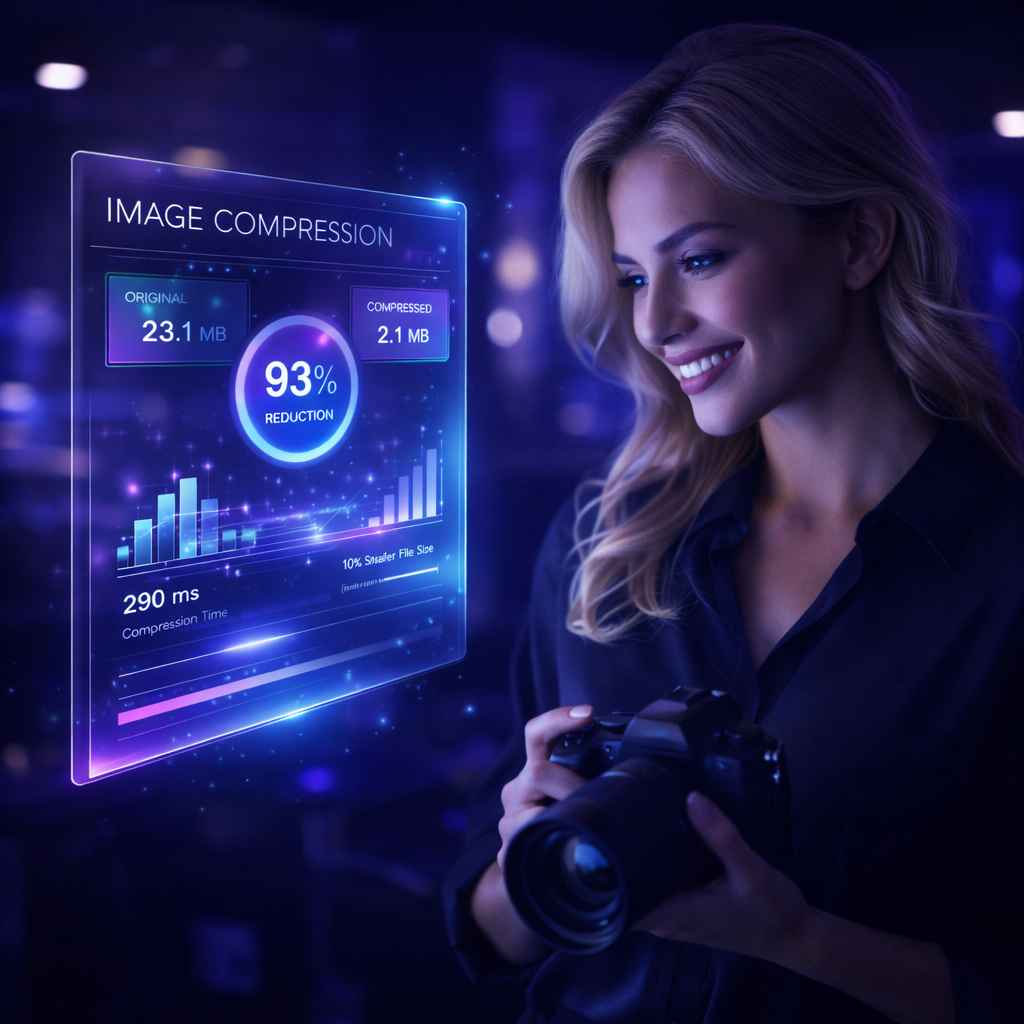
The best free image compressor online in 2026 is Optimage. It supports JPEG, PNG, WebP, and AVIF with no file size caps, no account required, and no watermarks on your compressed output. A typical 4MB JPEG compresses to under 400KB in under 3 seconds, entirely in your browser. For PNG specifically, TinyPNG offers slightly better lossless compression. For hands-on quality control, Squoosh is unmatched. Here is how each tool compares and which to choose for your situation.
What to look for in a free image compressor
Not all free compressors are equal. These are the criteria that actually matter in daily use:
No file size limits — Many "free" tools cap uploads at 5MB or 10MB. Modern camera and smartphone photos routinely exceed that. A compressor that rejects your file is not useful.
No output watermarks — Some tools add a watermark to compressed images unless you pay. This makes them unusable for professional or client-facing work.
Format support — You should be able to output WebP and AVIF, not just JPEG. Modern formats produce 30–50% smaller files at equivalent quality.
Bulk/batch support — Compressing one image at a time is fine occasionally. For product photography, blog post images, or client deliveries with dozens of photos, batch processing is essential.
No account required — Creating an account to compress a single image is unnecessary friction. The best free tools work immediately.
Quality control — Some tools compress to a fixed internal setting with no user control. The best ones let you set quality percentage or compare before/after.
Tool rankings
1. Optimage — best overall
Optimage runs compression entirely in your browser using WebAssembly codecs. Nothing is uploaded to a server. Key advantages:
- No file size limit
- No watermark on output
- Supports JPEG, PNG, WebP, AVIF output
- Batch compression (multiple files at once)
- Quality slider from 1–100%
- Strip EXIF metadata on request via /metadata
- Completely free, no account needed
The one area where Optimage is not the absolute best: advanced PNG lossless optimisation. If you are compressing UI assets and sprite sheets that must be lossless, TinyPNG's palette reduction algorithm is marginally better.
2. TinyPNG — best for PNG
TinyPNG uses a clever technique: it reduces a PNG from millions of colours to a 256-colour palette using a perceptual algorithm. For most images the reduction is invisible; for simple graphics with flat colours it can be dramatic — 50–80% size reduction on a lossless PNG.
Limitations: Free tier caps uploads at 20 files or 5MB per image. JPEG and WebP support exists but PNG is where it truly excels. It requires uploading files to their servers.
3. Squoosh — best quality control
Squoosh (squoosh.app) by Google is a single-image, side-by-side comparison tool. You see the original and the compressed version simultaneously, with a drag slider dividing them. You can switch codecs in real time and see the exact file size of each setting before committing.
It supports every modern codec including AVIF, WebP, JPEG XL, OxiPNG, and MozJPEG. It is the best tool when you need to find the exact quality/size trade-off for a specific critical image.
Limitation: It processes one image at a time. Not suitable for batch work.
4. ImageOptim — best Mac desktop app
ImageOptim is a free Mac application that accepts drag-and-drop batches of images and compresses them in place. It uses multiple compression engines (MozJPEG, PNGQuant, Zopfli) and is genuinely excellent for bulk desktop use.
It is desktop-only and Mac-only, so it is not a browser tool. Worth mentioning for anyone working primarily on a Mac who wants the fastest possible bulk compression without a browser.
Feature comparison table
| Tool | No file size limit | No watermark | WebP/AVIF output | Batch support | No account needed | Local processing |
|---|---|---|---|---|---|---|
| Optimage | Yes | Yes | Yes | Yes | Yes | Yes |
| TinyPNG | No (5MB cap) | Yes | Yes | Yes (20 files) | Yes | No (uploads) |
| Squoosh | Yes | Yes | Yes | No (1 at a time) | Yes | Yes |
| ImageOptim | Yes | Yes | No WebP/AVIF | Yes | Yes | Yes (Mac only) |
Feature score comparison
Which tool should you use?
For everyday compression of photos and web images — use Optimage. No setup, no limits, no watermarks.
For compressing PNG UI assets or icons — use TinyPNG if files are under 5MB, or Optimage for larger files.
For finding the optimal quality setting for a specific critical image — use Squoosh for the side-by-side comparison, then apply the same settings in bulk via Optimage.
For bulk desktop compression on a Mac — use ImageOptim.
For compressing images before web upload — use Optimage's compress tool to convert to WebP or AVIF, then upload. Page load speed improves proportionally to the file size reduction.
Does free compression reduce quality?
Yes — all lossy compression removes some image data. The question is whether the removal is visible. At 80% WebP quality, the loss is invisible to human vision at normal screen sizes. Pixel-peeping at 200% zoom will reveal minor differences, but that is not how images are viewed.
At 60% quality and below, artefacts become visible: block edges, colour banding, and smearing around high-contrast areas like text on images. For web use, stay at 75–85% quality.
Lossless compression (PNG, WebP lossless) does not reduce quality but only produces 10–30% size reductions — not enough to reach the 1MB targets most people need.
Does free vs paid compression make a difference?
No. The compression quality depends on the codec (MozJPEG, libwebp, libaom) and the quality setting, not whether you paid. Optimage uses the same open-source codecs as paid tools. The differentiator between free and paid tools is typically batch limits, cloud storage, CMS integrations, and team features — not compression quality.
Continue reading
Try Optimage — it's free
Compress, convert, and optimize images in seconds. No sign-up, no limits.
Start Optimizing Free