
- ✓Instagram recompresses everything — a 10MB original and a 500KB compressed file end up similar
- ✓Pre-compressing at quality 80 means you control which detail is sacrificed
- ✓Convert to JPEG before Instagram upload — Instagram does not display WebP
- ✓Stories and Reels compress more aggressively than feed posts — aim for under 1MB
The fastest way to share World Cup 2026 stadium photos is to compress them first with a free browser tool, then send. Upload your photos to Optimage /compress, let it shrink files by up to 90%, then post or message directly. No app install, no account, no waiting. WhatsApp delivers compressed files in seconds instead of minutes, and Instagram won't mangle your shot with its own aggressive re-compression.
Why Platform Compression Ruins Your Match Photos
Every platform touches your image the moment you upload it. Instagram targets 100–200 KB per image. WhatsApp compresses to roughly 80–150 KB. Telegram is more generous but still caps at 400 KB for images shared as photos rather than files. When you hand a 5 MB JPEG from a modern smartphone to any of these services, they run it through their own pipeline — shrinking dimensions, dropping quality, and introducing artifacts around high-contrast edges like white kits against green turf or stadium floodlights.
The tell-tale sign is that banding effect around bright lights and the soft, muddy look that shows up in crowd shots. That is not your phone's fault. That is the platform's compressor overwriting your file.
The fix is to control the compression yourself, before the platform gets it. When you hand WhatsApp a 200 KB JPEG that is already clean and well-optimized, it has little left to do. The image arrives looking the same as what you compressed.
The 3-Step Process
Open optimage.dreamintrepid.com/compress in your phone or laptop browser. Drop up to 50 photos in at once. Optimage compresses your photos and returns them ready to download — files are not retained after your session ends. Click download, then share the output files directly. That is the entire workflow.
Target File Sizes by Platform
Knowing what each platform actually accepts helps you choose the right compression level.
WhatsApp delivers images as photos (compressed) or documents (untouched). If you share a file as a "Document" instead of a "Photo," WhatsApp passes it through without re-compressing. But your recipient still has to download the full file. For casual sharing, aim for 150–300 KB per image. That is fast to send and fast to open on mobile data.
Instagram feed posts benefit most from images in the 800–1200 KB range uploaded at 1080 px wide. Instagram's compressor works best when you give it a file that is already close to what it wants. Upload a 6 MB raw JPEG and Instagram will destroy it. Upload a well-compressed 900 KB JPEG and the output is nearly identical.
Telegram is the most relaxed. Images shared as "Photos" cap at about 1200 px on the long edge, but sharing as "Files" preserves the original. For group chats where people just want to see your celebrations, 300–500 KB per photo is plenty.
iMessage / SMS is the most punishing channel of all. US carriers still compress MMS aggressively. Keep photos under 300 KB if you want them to arrive without looking like they were sent by fax.

Batch Compressing 50 Photos After the Match
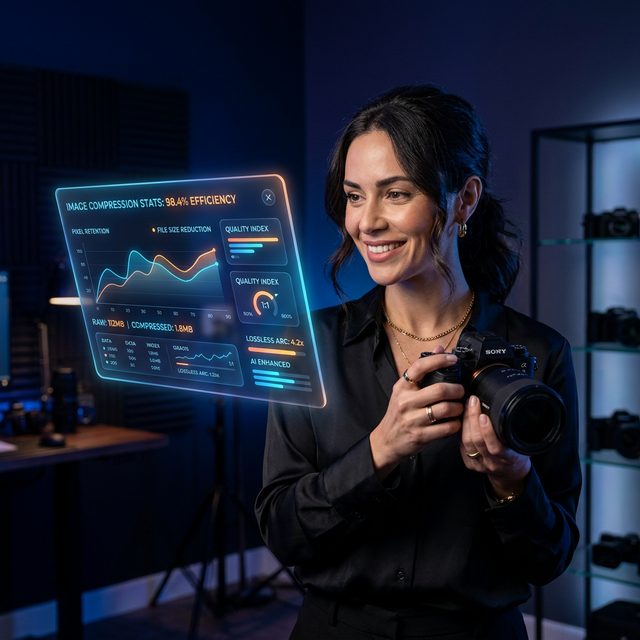
After a 90-minute match you could easily have 80–150 photos on your phone. Going through them one by one is not realistic. The batch mode in Optimage /compress lets you select your whole camera roll dump, drop it in, and get a ZIP of compressed files back in under a minute.
The practical workflow for a stadium visit:
- After the final whistle, find a seat and open optimage.dreamintrepid.com/compress on your phone browser.
- Select your 20–50 best shots from your camera roll.
- Drop them all in at once. Let the browser work.
- Download the ZIP.
- Extract and share the compressed folder via WhatsApp, Telegram, or AirDrop to family.
For journalists and bloggers who need to file photos the same day, this workflow gets you from camera to publishable file in under five minutes without touching Lightroom or any desktop software.
World Cup 2026 Specific Considerations
The 2026 tournament spans three countries — the United States, Canada, and Mexico — across 16 stadiums. That means highly variable connectivity. A match at SoFi Stadium in Los Angeles will have decent in-stadium WiFi. A packed venue in Kansas City or Dallas during a knockout match will have congested networks that make every megabyte matter.
Compressing before you try to send is not just about file size. It is about reducing the amount of data you need to push over a contested network. A 200 KB file has a real chance of uploading in 30 seconds on a slow connection. A 5 MB file might time out entirely.
The other consideration is cloud backups. If your phone is set to auto-backup to iCloud or Google Photos, every match might add 500 MB–2 GB of photos. Compressing a selection of your best shots also makes it faster to sync and easier to manage your storage while you are on the road.
Keep Your Originals
Compress copies, not originals. Optimage /compress always gives you the compressed version as a separate download — your originals are never touched. Keep your high-resolution originals backed up to your cloud storage. The compressed versions are for sharing. If someone later wants a print-quality image, you can always go back to the original.
If you also want to strip the GPS location metadata from your photos before sharing publicly — stadium GPS coordinates can narrow down your seat location — use Optimage /metadata to remove EXIF data before you post.
More Ways to Use Optimage During the Tournament
- Resize photos to exact Instagram dimensions (1080 × 1350 px for portrait feed posts) before uploading, so Instagram does not crop unexpectedly.
- Crop group shots to highlight the best part of the frame before sharing.
- Create a private gallery with your best tournament photos so family abroad can browse them at their own pace without needing a WhatsApp group thread.
Continue reading
Try Optimage — it's free
Compress, convert, and optimize images in seconds. No sign-up, no limits.
Start Optimizing Free